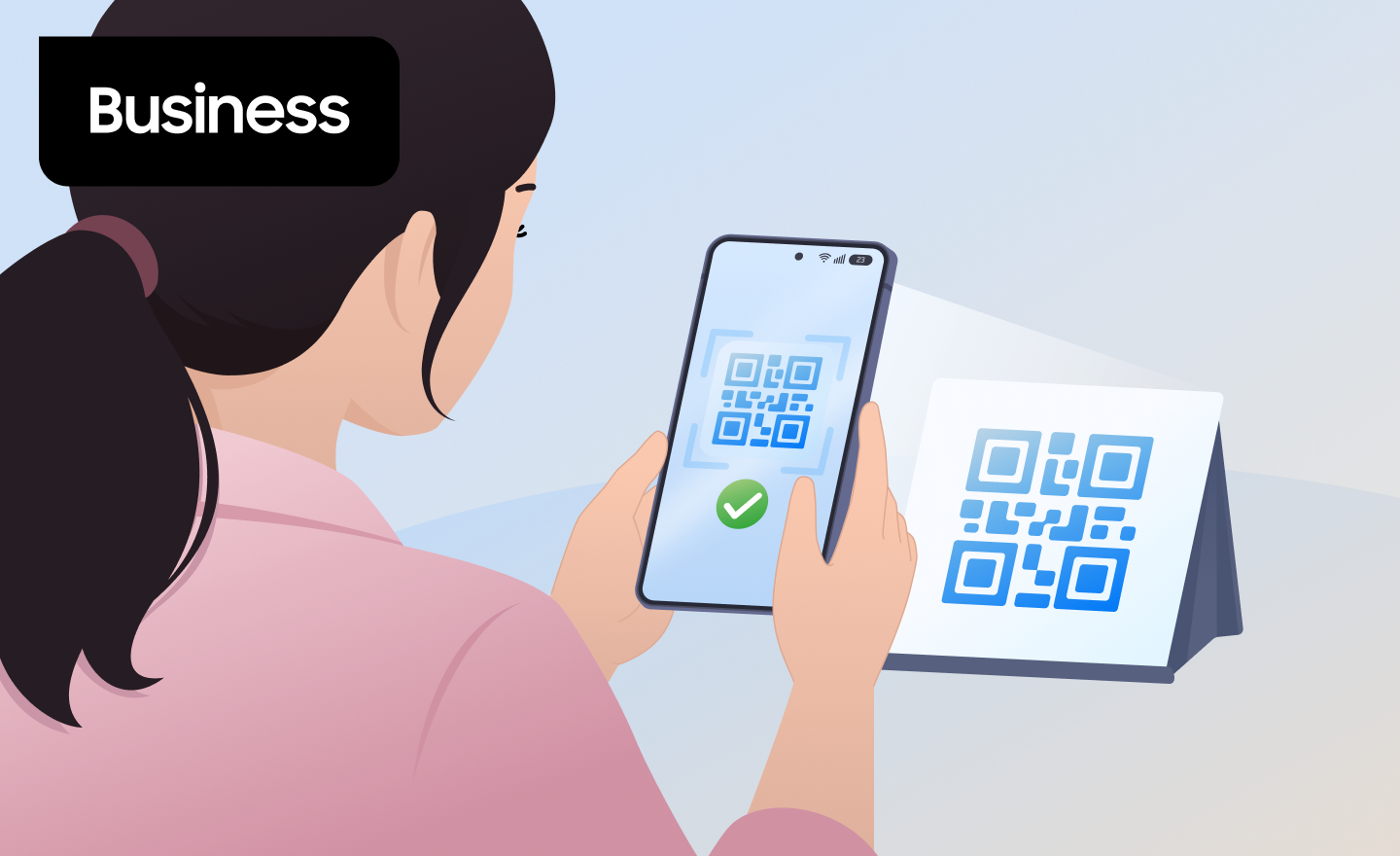
Not every device arrives through the front door. Some are bought direct, some come from a regional supplier, and some are factory-reset hand-me-downs starting a second career at your company.
Out-of-box experience (OOBE) enrollment won’t pick those up, because it only works for devices uploaded by a reseller. QR code enrollment picks them up instead. With Knox Mobile Enrollment, a device user draws a plus sign, scans a code, and follows the setup screens to enroll their Samsung Galaxy device into your enterprise mobility management (EMM) platform.
Here’s how QR code enrollment works, when to reach for it instead of OOBE, and what to keep in mind when you share codes.
Table of contents:
- What is QR code enrollment?
- QR code enrollment vs. out-of-box enrollment: which fits your fleet?
- Samsung Knox QR code vs. Android Enterprise QR code: what’s the difference?
- How to set up QR code enrollment in Knox Mobile Enrollment
- How to share QR codes safely
- Enroll more devices, wherever they came from
What is QR code enrollment?
QR code enrollment is a device setup method where the device user scans a QR code during initial setup to enroll the device into an EMM.
In Knox Mobile Enrollment, the QR code is generated from an enrollment profile. If the QR code includes Wi-Fi credentials, the device connects to that network automatically when the code is scanned. If it doesn’t, the device user enters Wi-Fi details manually. Either way, the device then follows the profile’s enrollment screens into your EMM.
Knox Mobile Enrollment supports QR code enrollment on devices running Android 10 or later.
QR code enrollment vs. out-of-box enrollment: which fits your fleet?
Knox Mobile Enrollment offers two ways to enroll devices into an EMM, and the right one depends on fleet size and where your devices came from. OOBE enrollment is designed for large fleets of reseller-uploaded devices, while QR code enrollment suits smaller fleets or devices that weren’t uploaded by a reseller.
| Out-of-box enrollment (OOBE) | QR code enrollment | |
|---|---|---|
| Best for | Large fleets | Small fleets |
| Device source | Reseller-uploaded devices only | Reseller-uploaded devices, plus non-reseller devices if your profile allows them |
| What you need first | Devices uploaded by a reseller, with an enrollment profile assigned | An enrollment profile with a QR code, and devices running Android 10 or later |
| Enrolls into | EMM, Knox E-FOTA, and Knox Asset Intelligence | EMM only |
| Wi-Fi during setup | Device user connects to Wi-Fi. Networks behind captive portals are supported on Android 14 or later | Credentials can be included in the code. If they aren’t, the device user enters them |
| What the device user does | Turns on the device, connects to Wi-Fi, and follows the setup screens | Draws a plus sign on the setup screen and scans the QR code |
The “Enrolls into” row matters more than it looks. If your enrollment profile also includes Knox E-FOTA or Knox Asset Intelligence, QR code enrollment skips them and enrolls the device into your EMM only. To install those services too, use OOBE. For devices that are already set up, user sign-in is another option. It skips the QR code and enrolls the device when the device user signs in to their Samsung account for Business.
One more check before you roll out codes: QR code enrollment isn’t available on every Samsung device. Some models with limited Samsung Knox compatibility can’t use it, so confirm your devices are supported first.
Samsung Knox QR code vs. Android Enterprise QR code: what’s the difference?
Samsung Galaxy devices can scan two different kinds of enrollment QR codes, and each one comes from a different place.
- Android Enterprise QR code (six-tap): This method is built into the Android setup wizard on devices running Android 7.0 or later. The device user taps the welcome screen six times in the same spot, then scans a code generated by the EMM.
- Samsung Knox QR code (plus sign): The device user draws a plus sign (+) on the setup screen, then selects QR code on the Knox Deployment screen and scans a code generated from a Knox Mobile Enrollment profile.
Both enroll the device into your EMM, and some EMMs work with either flow. Knox Manage, for example, has its own six-tap QR code and can be the EMM in a Knox Mobile Enrollment profile. The difference is where the configuration lives. A Samsung Knox QR code is tied to a Knox Mobile Enrollment profile, so the device enrolls with the settings you’ve defined there.
Because the two flows start with different gestures, tell device users which one to use when you share the code.
How to set up QR code enrollment in Knox Mobile Enrollment
QR code enrollment happens in two places: The IT admin generates the QR code in the Knox Admin Portal, then the device user scans it on the device during setup.
Step 1: Generate the QR code in the Knox Admin Portal (IT admin)
The IT admin completes these steps in the Knox Admin Portal, inside a Knox Mobile Enrollment profile.
- In the Knox Admin Portal, open the Enrollment page. You can click Enrollment in the left navigation pane, or click Profiles under Knox Mobile Enrollment. Both take you to the same page.
- On the Profiles tab, click Create profile.
- Under Basic info, select EMM as a solution to install.
- Enter your contact information and EMM information.
- Under QR code enrollment in the device settings, click Add QR code. Then, optionally:
- Select Also allow QR enrollment for devices not uploaded by a reseller.
- Under Wi-Fi network configuration, add Wi-Fi credentials to the code.
- Click ADD to generate the QR code, then Download or Print it.
If you only plan to use QR code enrollment, click Create profile at the review step. You don’t need to assign the profile to devices.
For the rest of the profile settings, like the Knox Service Plugin, system app visibility, legal agreements, and certificates, see the guide to creating a profile.
Step 2: Scan the QR code on the device (device user)
The device user completes these steps, not the IT admin. Everything happens on the device during set up, so no Knox Admin Portal access is needed.
- Turn on a new or factory-reset device.
- Draw a plus sign (+) on the screen to open the QR code reader.
- On the Knox Deployment screen, tap QR code.
- Scan the QR code.
- If the code includes Wi-Fi credentials, the device connects to the network automatically. If not, enter Wi-Fi details.
- Follow the enrollment screens, enter EMM credentials when prompted, and tap Finish.
If you’re providing setup instructions for device users, the device-side setup steps cover both the QR code and OOBE flows.
How to share QR codes safely
A Samsung Knox QR code applies your enrollment profile to a new or factory-reset device. That adds management to the device, not access to your Samsung Knox settings, so the main thing to protect is what else the code carries, like Wi-Fi credentials.
- Be selective with Wi-Fi credentials. Only add them to codes shared through trusted channels, since anyone with the code could use them to join that network.
- Isolate the enrollment network. If the code carries Wi-Fi credentials, consider enabling wireless isolation on that access point or router.
- Control distribution. Share codes in onboarding emails or printed setup guides for a specific deployment, not on shared drives or public pages—so your profile only reaches the devices you intend to enroll.
Enroll more devices, wherever they came from
OOBE enrollment handles the large, reseller-supplied deployments. QR code enrollment fills in the gaps: small batches, direct purchases, and reassigned devices. Both run from the same enrollment profile in Knox Mobile Enrollment, so IT sets up the configuration once.
Ready to simplify device setup? Explore how Knox Mobile Enrollment gets devices into your EMM from the first boot.
Explore Knox Mobile Enrollment
Frequently asked questions
Yes. Knox Mobile Enrollment supports QR code enrollment for devices a reseller hasn’t uploaded, as long as the enrollment profile allows it. OOBE enrollment requires devices uploaded by a reseller.
Samsung Galaxy devices running Android 10 or later. A small group of models with limited Samsung Knox compatibility can’t use QR code enrollment. They’re listed under the Android - Others platform in the list of devices supported by Samsung Knox.
No. QR code enrollment only enrolls devices into an EMM. To enroll devices into Knox E-FOTA or Knox Asset Intelligence, use OOBE, or user sign-in for devices that are already set up.
Yes. Device users scan the QR code from the setup screen, so the device must be new or factory reset. A device that’s already in use needs a factory reset before it can enroll with a QR code.


